Integration
Microsoft Planner status check-ins
Check in with everyone assigned to a Planner plan, then apply the dates you approve back to Planner. Pairs naturally with sending from Outlook.
Watch the setup · 2:52
Connect Microsoft Planner with your work account, review and send a check-in, and apply approved dates back to the task — only when you click Apply.
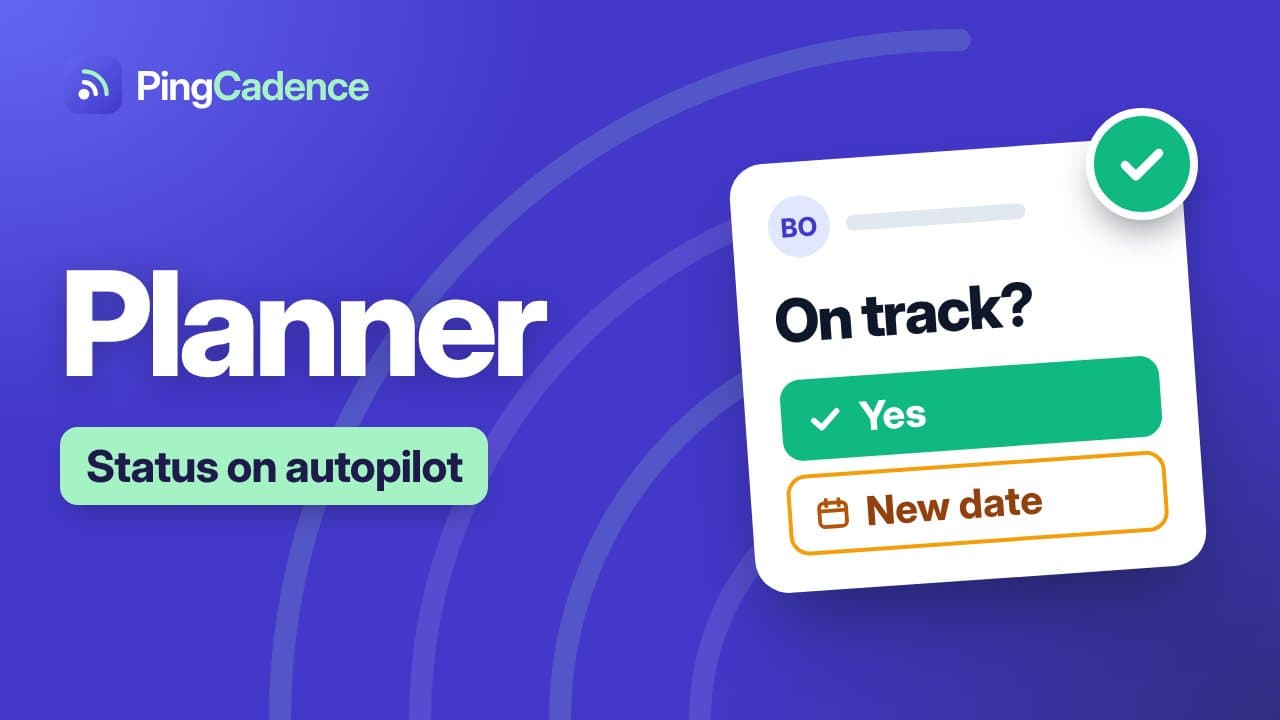
How it connects
Click Connect Microsoft Planner, sign in with your work or school Microsoft account, and pick a plan. PingCadence reads its tasks, assignees, start and due dates and % complete. The connection covers basic plans: premium plans aren't available through Microsoft's Planner API yet, so for a premium plan use Export to Excel in Planner and import the file instead (add any missing email addresses under Who gets asked; dates aren't written back from a file). If your organization only lets admins approve new apps, send your IT admin pingcadence.com/it-admins.
What PingCadence reads
Tasks, assignees (names and email addresses), start and due dates, % complete.
Applying date changes
When a task owner proposes new dates, you choose to apply them to Microsoft Planner, edit manually, or reject. Nothing is written back automatically.
Moving off Project Online? Read what changed when Project Online retired and how to keep status reporting running.
Support for the Microsoft Planner connection
Questions or problems connecting Microsoft Planner? Email hello@pingcadence.com. Tell us which plan or project you were connecting and what you saw, and attach a screenshot if you have one.